AI Generative Fill — Replace & Add Objects in Photos

Upload a JPG, PNG, or WebP photo, paint the area you want to change, describe what to add or preserve, and download your edited result.

Model

Upload image

Drop a JPG, PNG, or WebP image here or browse

JPG, PNG or WebP · up to 10 MiB and 40 MP. The working grid is capped at 2048 px on the long edge.

Try an example

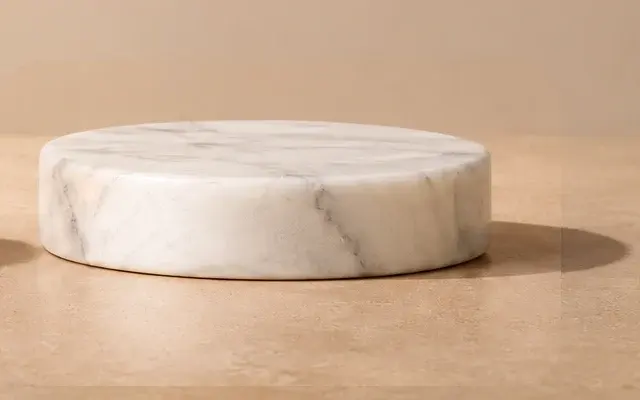
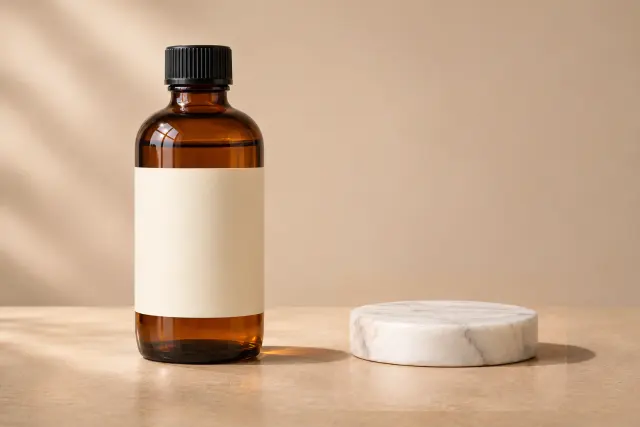
Recorded product output: product scene with the wooden block replaced by a low round white marble pedestal beside the bottle
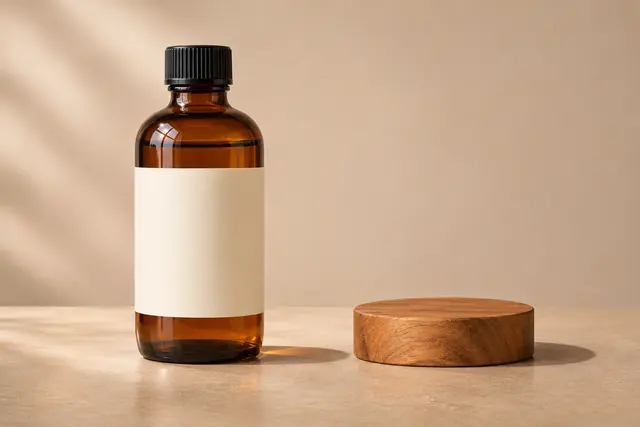
Amber bottle standing beside a low wooden display block on a tabletop
Original
Edited
Archived product example. Drag to compare; loading it requests no generation.

ZEnhancer’s AI generative fill is an online image-editing tool that replaces or adds elements inside a painted mask using descriptive text prompts.

How to Use AI Generative Fill Online

Create a generative fill edit in three steps, from upload through export.

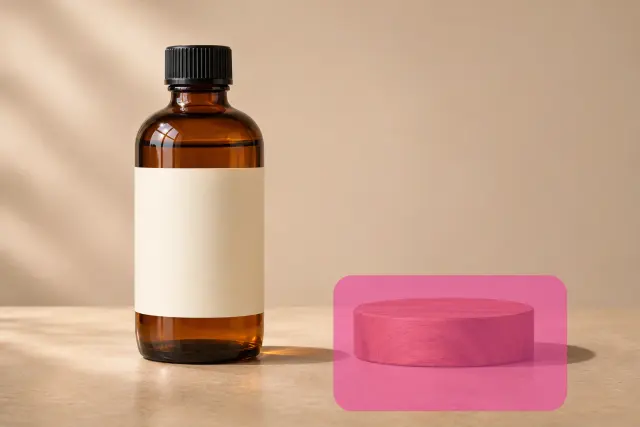
The wooden display block and its contact shadow marked with a selection mask
Selection mask

Upload an Image and Mark the Area

Upload one clear image, then check orientation. Mark an image area using brush controls; adjust size for your intended object and its contact shadow. If you choose another source image, draw a new selection so each marked area matches it. If an image exceeds a limit, resize a copy for upload. Keep your source image for later detail checks. Check both image limits: file bytes measure upload size; pixel count measures image dimensions.

Describe What Should Replace the Selection

Type precise descriptive wording into prompt fields. Name replacement items, intended textures, colors, contextual illumination. Specify background elements that must stay stable alongside new objects. Clear text instructions help our generative fill tool render coherent details aligned with camera perspective. Avoid ambiguous adjectives; focus on tangible object attributes.

Generate, Compare and Download

Check your quote and eligibility before generating. Compare each generative fill result with its source image. Inspect edges, scale and lighting. Check unselected areas too. Export the recorded product image as PNG or JPG.

AI Generative Fill Tool Controls and Costs

Use AI generative fill tool controls to refine an image before another edit.

Original navy coat with a pink painted selection over one sleeve in the editor.
Pink brush selection on the navy sleeve.
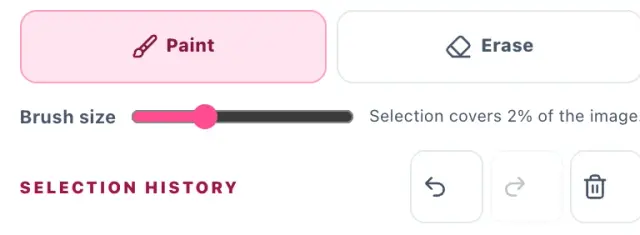
Localized editor crop showing brush size, paint, erase, undo and redo controls.
Brush size, erase and selection history.

Edit the Selection with Simple Brush Controls

Refine each image selection with this AI generative fill tool before submitting.

  • Mark an image area precisely: Paint adds it; Erase removes it.
  • Reverse brush mistakes: Undo steps back; Redo restores a selection change.

See the Cost Before Starting an Edit

Sign in with a verified email to use GPT Image 2. The AI generative fill tool shows the current credit cost and checks your balance before you submit. If a connection drops, check the current edit before starting another.

  • Check price before submitting: Quote shows cost; Eligibility explains access.
  • Keep an edit traceable: Status shows progress; Recovery resumes checking.

Keep the Source and Review the Result

A 30-minute local draft stores your source image with its painted selection and prompt. Server retention remains unverified.

  • Compare image changes: Original retains source view; Compare reveals differences.
  • Save an image copy: PNG/JPG export reuses the completed or recorded result; downloading does not start another generation.

Generative Fill Results and Quality Checks

Inspect your original image alongside each image result. A generative fill edit needs checks in both selected and unselected areas.

Recorded native-mask run

Amber bottle standing beside a low wooden display block on a tabletop

Source image

The wooden display block and its contact shadow marked with a selection mask

Selection mask

Recorded product output: product scene with the wooden block replaced by a low round white marble pedestal beside the bottle

Edited image

Unretouched PNG (1536×1024) replaces the wooden block with a marble pedestal; a faint tonal seam remains.

Recorded prompt: Replace the selected wooden display block with a low round white marble pedestal. Match the soft light from the left and contact shadow. Keep the amber bottle, blank label, tabletop and background unchanged.

Source photos are AI-created test inputs; edits show real provider runs under controlled evaluation.

Review the Original, Selection and Result

Review five details in each generative fill result against its source image.

A selection is guidance. Any image detail may change; check a full image view before saving.

  • Request: Does the object match your description?
  • Edges: Look for halos, smears or abrupt seams.
  • Scale: Check size, perspective and surface contact.
  • Light: Review shadow direction, brightness and material reflections.
  • Context: Inspect faces, lettering and background lines beyond your selection.

Check Edges, Scale and Background Changes

Inspect image edges for halos, smears or abrupt changes in focus. Compare scale against nearby objects. Match display sizes before judging a resized image, then zoom in to inspect its edges.

Recorded product image: a complete pedestal is visible, with a faint tonal seam.

Each practice example includes a source image with a painted selection. Both results are pending verification.

Image Generative Fill for Everyday Edits

Use generative fill within an existing photo. Compare a recorded product image or practice with an outdoor or room image. The two practice results are pending verification.

Amber bottle standing beside a low wooden display block on a tabletop
Scenario input photo

Replace a Product Prop in an Image

Start with the recorded product example: a bottle beside a wooden display block. Its loaded prompt asks for a low round white marble pedestal, matching the soft left light and contact shadow while keeping the amber bottle, blank label, tabletop and background unchanged. The recorded result is a reference, not a new generation. Check label lettering, glass reflections, pedestal scale and the join with the tabletop; an unselected bottle or background detail may still change.

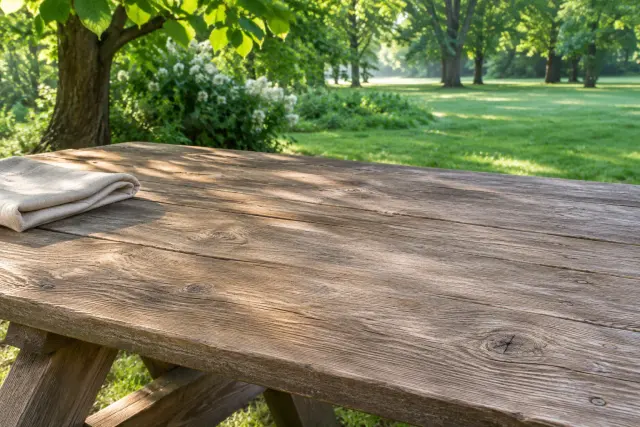
Outdoor wooden picnic table with folded linen on the left and an empty right corner
Scenario input photo

Add a Detail to an Existing Photo

Choose an outdoor image with an empty corner on a picnic table. Mark a small area that leaves room for the new object and its shadow. Try: “Add one blue ceramic mug on the table, with a handle facing right and soft morning light.” Review the generative fill result at full view, then inspect the mug closely. Does its size fit nearby objects? Does the shadow touch the table? Compare surrounding wood grain and background detail with your source image before saving an edited copy.

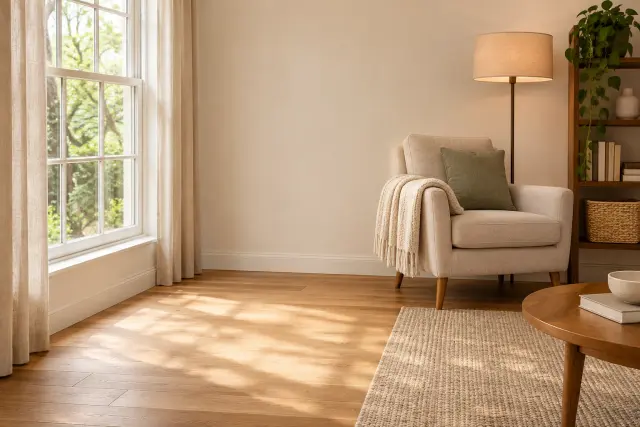
Living room with a tall window on the left, an armchair, and open floor space
Scenario input photo

Refresh One Part of a Room Scene

Use a room image with an open floor area beside a window. Select space for a plant and pot, including where the pot would meet the floor. Try: “Add a small rubber plant in a terracotta pot, with daylight from the window.” After generative fill, check leaf size, pot perspective and the contact shadow. Compare floorboards, window edges and furniture with your original image. If the addition looks too large, revise your prompt or selection before another edit; the first result is a candidate to inspect.

Write Better Prompts and Refine Your Selection

For an online AI generative fill tool, a useful prompt names the replacement and the details you want to keep. Selection size supplies another part of the instruction.

Source + maskText promptProvider result

Name the Replacement and Its Key Details

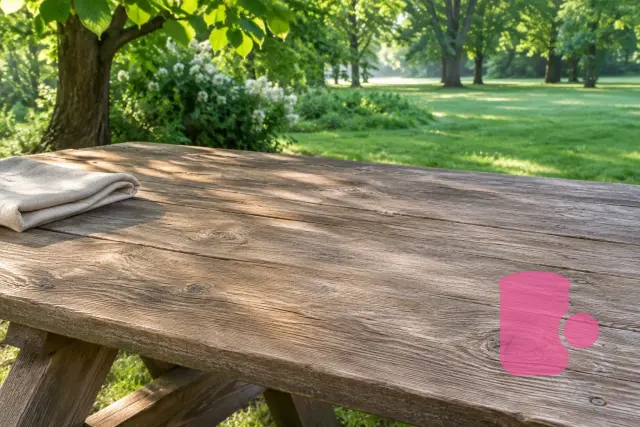
Empty foreground corner of the wooden table marked with a selection mask
Tabletop selection for mug placement.

Name an object, color, material and position for your image. For example: “a small blue ceramic vase on a table, lit from the left.” Include details you want to retain. An AI generative fill prompt expresses your intention. Compare the output with your source image to see what actually changed.

Fix Oversized Masks and Unclear Boundaries

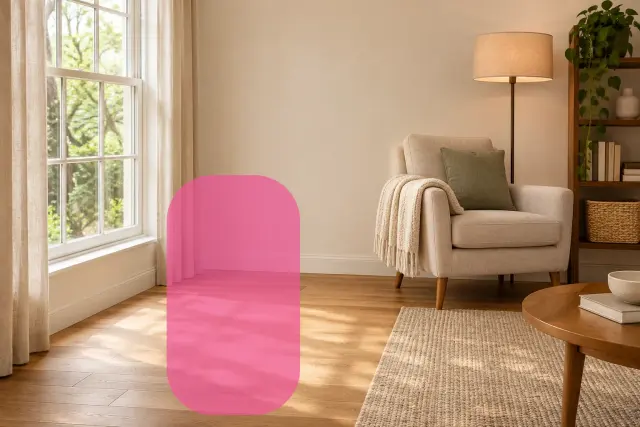
Open floor area beside the window marked with a selection mask
Floor area marked for plant placement.

Leave some surrounding image context visible. If an edge looks wrong, adjust your image selection to include a relevant shadow, then try a revised prompt. Wider masks can change more of a scene; narrower ones can leave part of an unwanted object. Judge each image result rather than assuming a mask guarantees a clean edge.

Compare Online AI Generative Fill Tool Options

Compare an online AI generative fill tool by the work you can complete, access conditions and export limits. These observations were recorded on November 17, 2026.

Compare Workflow, Access and Download

PlatformBrush & Prompt WorkflowAccess & Account GateExport Options
ZEnhancerPaint the area to edit, write a prompt and generate with GPT Image 2, or open the recorded product example.Verified email and sufficient credits required for a new edit. The tool shows the quote before submission.JPG and PNG export of the recorded 1536×1024 result.
PixelcutBrush + prompt testedPreview available in this test; HD login promptJPG downloaded; HD not downloaded
PixlrSelection + prompt testedAccount prompt before generation in this testUnknown: not tested
EzEnhancerBrush + prompt; one result tested4 trial credits used in this testPNG downloaded

Read File Limits and Test Conditions

Pixelcut and EzEnhancer each yielded one downloaded file. Pixlr stopped at a sign-in prompt. No shared benchmark measured comparative speed or quality. Internal model details remain unverified.

PlatformInput used or proposed limitOutput observedCost in this testSpeed
ZEnhancerRecorded 1536×1024 example; public upload up to 10 MiB / 40 MPJPG and PNG export of the recorded 1536×1024 outputOpening the recorded example uses no creditsNot measured
PixelcutBuilt-in product image720×1080 JPEG (733,271 bytes); HD 1280×1920 sign-inFree preview observed; HD requires loginNot measured
Pixlr800×600 PNGUnknown (untested due to gate)Not testedNot measured
EzEnhancer800×600 PNG1408×1056 PNG (1,015,496 bytes)4 credits; 10→6Not measured

Generative Fill Questions and Answers

These generative fill answers cover input, access, result checks and recovery.

Detail of the recorded product result showing the marble pedestal's contact shadow and a faint seam at the replaced block edge.
Pedestal shadow and faint seam in the recorded image.

What Is Generative Fill and How Does Inpainting Work?

Generative fill uses an image selection and a text description to guide added or replacement content. This is a form of inpainting. The selection identifies your intended image change; it does not guarantee that surrounding image details stay identical.

How Do I Start and Which Image Formats Can I Upload?

Generative fill accepts one JPG, PNG or WebP image up to 10 MiB and 40 megapixels. Before generation, source image and selection share a working grid capped at 2048 px on its longest edge.

What Does Generative Fill Cost and Is an Account Required?

Generative fill uses GPT Image 2. Sign in with a verified email and check the credit quote in the editor before each edit. You can open, compare and download the recorded example without using credits.

How Should I Paint the Selection and Write the Prompt?

For an AI generative fill edit, cover the object and relevant contact shadow without selecting unrelated details. Name your requested replacement, material, color and position. Instructions to retain a face or label describe your intention; inspect each image result to see whether it was followed.

Can Details Outside the Selection Change?

Yes. Generative fill can change details outside the selected area, not just pixels touching its edge. Compare your full source image with each image result, especially faces, text and geometric lines. Use a more precise editing method when exact preservation is essential.

What Happens If an Edit Fails or I Refresh the Page?

After an interruption, check your current generative fill request before starting another. Refresh can restore a local draft within 30 minutes. Server retention is unverified. Check whether credits were returned after a failed request.

How Can I Compare and Download the Edited Image?

Compare each generative fill result with its source image. Download that recorded product image as PNG or JPG at 1536×1024. Retrying a download reuses your result.