AI Filter Online – Turn Photos into Art

ZEnhancer’s AI filter generator is an online photo styling tool that turns one photo into an illustrated image. Each filter offers a creative interpretation.

6 Filter PresetsOne PhotoPNG / JPG Export5–8 Credits / Generation
Choose a style
Optional direction

0/300

Checking credits…

Photo handling details are not yet verified. Photo handling

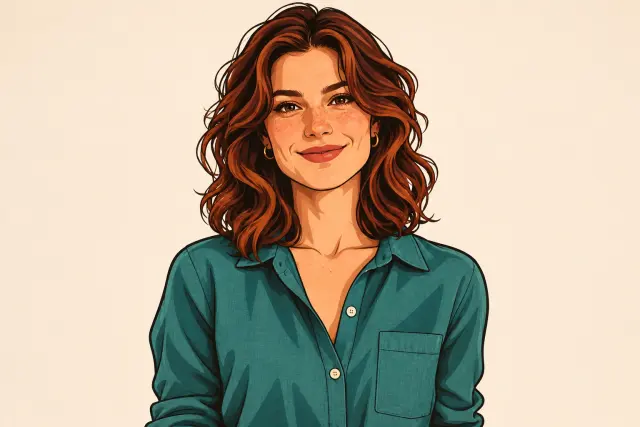
Illustrative Cartoon AI filter portrait with clear linework and simplified shading.
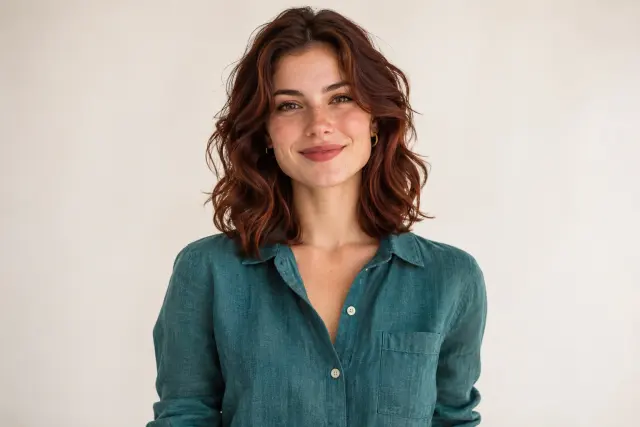
AI-generated source portrait of a woman with auburn hair in a teal linen shirt against an ivory background.
Original
Cartoon

Cartoon filter illustration · AI-generated source portrait

See Style Examples

Use this AI photo filter online with one JPG, PNG, or WebP up to 10 MB and 40 megapixels. Choose a filter style; optional direction guides color, texture, or mood.

ZEnhancer’s filter can change faces, text, or textures. Exact preservation is not guaranteed. Inspect the filter output before downloading; keep the unchanged original when accuracy matters.

Per generation: ZModel V1 uses 5 credits; ZModel V2 Pro uses 8. V2 requires Pro, Ultra, or eligible premium-pack credits. Free V1 use needs available credits; sign-in or verification may be required.

Which AI Photo Filter Fits Your Photo?

Choose your AI photo filter by visual style, source detail, and intended use. These filter presets guide a new interpretation; inspect the output before sharing.

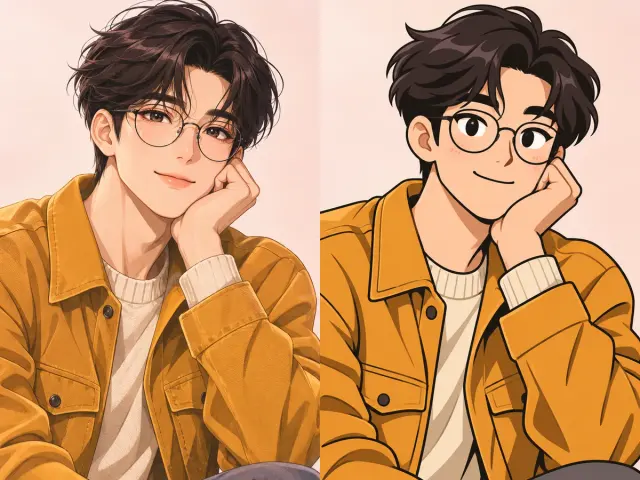
Anime and cartoon portraits of a bespectacled man, shown as AI-generated style illustrations.

Anime and Cartoon for Illustrated Portraits

Anime Filter

A clear portrait when you want expressive drawn eyes, clean linework, and simplified shading.

Inspect eye shape, hair, and fine outlines in the AI photo filter output.

Cartoon Filter

A selfie or pet photo with a simple background, for bold outlines, playful proportions, and simplified shapes.

Check expression, silhouette, ears, or accessories in this AI photo filter.
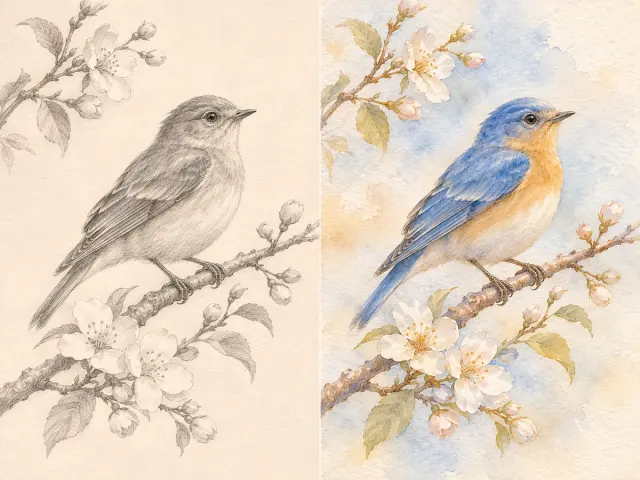
A bird on a flowering branch in pencil sketch and watercolor, illustrated with AI-generated artwork.

Sketch and Watercolor for Softer Detail

Sketch Filter

A photo with clear lighting and distinct contours, for pencil lines that describe shapes through light and shadow.

Inspect pencil contours, lettering, or hair in the AI photo filter output.

Watercolor Filter

A portrait or travel photo when you want washes of color and softer edges.

Check the subject outline before saving; this AI photo filter can soften background text.

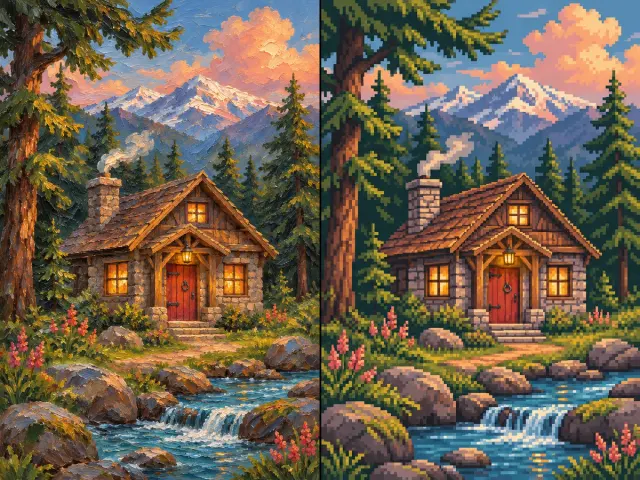
Oil painting and pixel art versions of a mountain cabin beside a stream; AI-generated illustration.

Oil Painting and Pixel Art for Bolder Texture

Oil Painting Filter

A clearly lit photo with broad color areas, for brushwork and a textured painted look.

Review skin or fur closely: this AI photo filter can hide fine texture beneath brushwork.

Pixel Art Filter

A simple subject when you want blocky shapes and a restrained color palette.

Preview the AI filter at sharing size, where small shapes may merge.

How Do You Use Your AI Photo Filter Online?

Apply your AI photo filter online in three steps.

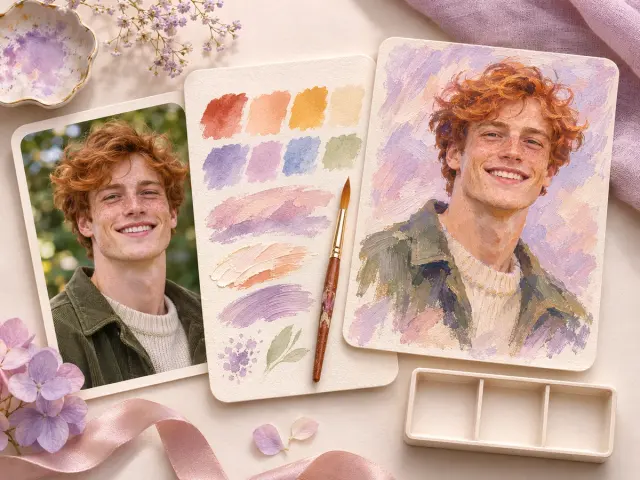
A red-haired man's photographic and painted portraits beside color swatches, in AI-generated artwork.
  1. Upload One Photo for the Filter

    Upload one JPG, PNG, or WebP photo. Select a filter preset; this AI filter for profile pictures needs a visible face and suitable crop. Add optional color or texture direction.

  2. Check the Filter Cost Before Generating

    ZModel V1 uses 5 credits; ZModel V2 Pro uses 8 per new generation. Review the filter quote and balance before selecting Generate Image. Free V1 use needs available credits; sign-in or verification may be required.

  3. Review Your Filter Image and Download

    Compare the AI filter output with the original. Inspect faces or lettering at sharing size, then download PNG or JPG. Saving an existing result does not start another generation.

  • Pick an AI Filter Before Generating. Six presets and one illustrated Cartoon example guide style selection.

  • Check the Filter Cost Before You Submit. Model cost and available credits appear beside Generate Image.

  • Inspect the Original and Filter Image. Original view plus a comparison slider show visible changes.

  • Export AI Filter Results Without Regenerating. PNG and JPG downloads save the existing image.

AI filter limits: one image, up to 10 MB and 40 megapixels. Keep the original. If processing fails, check task status and credits before retrying; a new generation uses credits. Read our Privacy Policy.

What Changes in an AI Photo Filter Result?

Judge an AI filter by recognizable subjects, visible style, and usable details.

Compare the Same Photo and Filter Output

Compare output from the AI photo filter online with the same original, using the size planned for sharing. Inspect outlines, color, shading, or texture without overlooking pose and framing. A convincing style can still redraw important details. This Cartoon artwork is illustrative; inspect every preset individually when generating. Keep the original beside each AI filter image you save.

Illustrative Cartoon AI filter portrait with clear linework and simplified shading.
AI-generated source portrait of a woman with auburn hair in a teal linen shirt against an ivory background.
Original
Cartoon
Cartoon: AI-generated illustration, fictional source portrait, size 1536 × 1024, 2026-11-14.
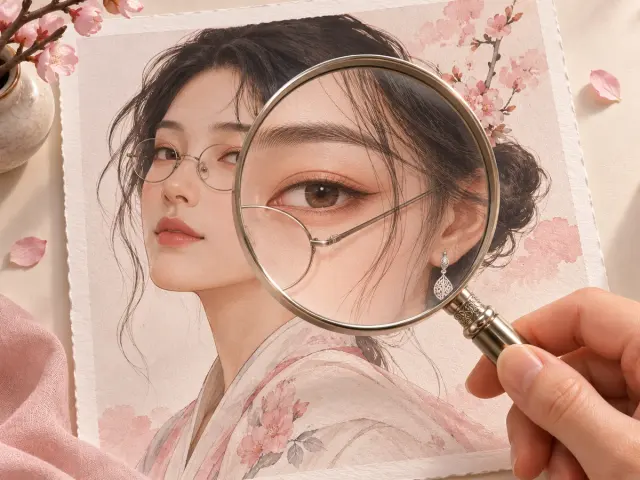
Magnified eye, hair and eyeglasses in a portrait, depicted in an AI-generated detail-check illustration.

Inspect Filter Details in Faces and Text

Inspect eyes, hair, jewelry, lettering, and product labels. This AI photo filter can redraw each of these details, even when the overall finish looks polished. Check the filter output closely against names, numbers, or small source shapes. Treat the image as a creative interpretation; an attractive AI filter result does not prove factual accuracy.

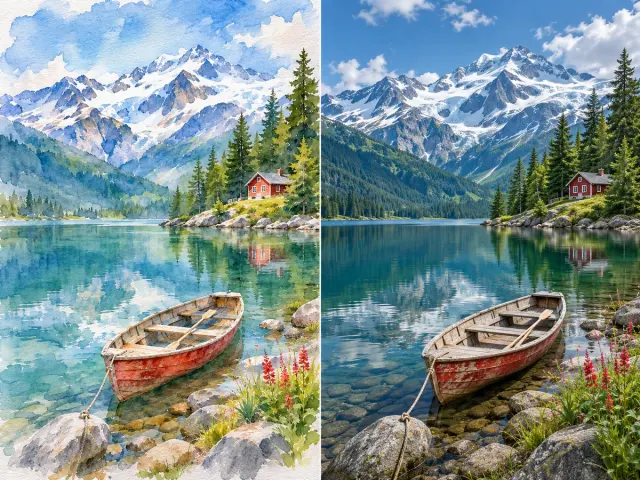
Watercolor and photographic treatments of a boat on a mountain lake, in an AI-generated comparison illustration.

Choose a Filter or a Clarity Tool

Use an AI filter for an artistic change. Photo Enhancer suits general clarity, Unblur Image addresses blur, and Image Upscaler increases dimensions. Check enhanced results against the source too: enhancement cannot guarantee exact reconstruction of missing information. This AI filter for profile pictures serves creative avatars rather than identity documents. Keep unchanged originals for product records or any task requiring exact detail.

Which Photos Suit This AI Photo Filter Online?

Back to the AI Filter
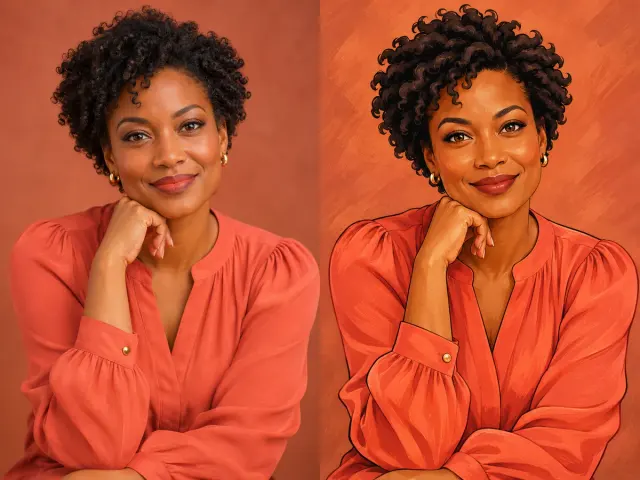
AI-generated portrait artwork pairing a woman in an orange blouse with a painted avatar concept.

Try an AI Filter for Profile Pictures

An AI filter for profile pictures suits a creative avatar when exact likeness is not essential. Start with one well-lit face, clearly visible eyes, and enough space around the head for the intended crop. Choose Cartoon for bold outlines or Anime for an animated look. Inspect the filter image around the eyes, mouth, hair, or accessories before saving. Preview the avatar at sharing size, where small details disappear. Keep a separate original for professional identification or any situation requiring an unchanged portrait.

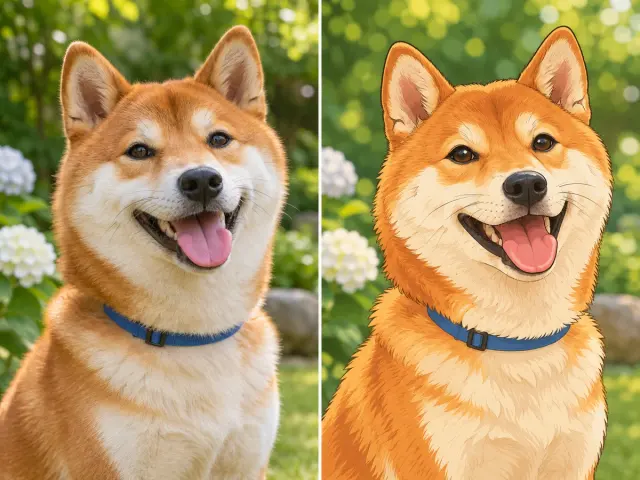
Shiba Inu portrait and cartoon treatment with a blue collar, presented as AI-generated artwork.

Choose a Filter for an Illustrated Pet

Use our AI photo filter online to explore a pet illustration for a personal post or gift concept. Choose an input with a visible face, distinct ears, and a background that leaves the animal’s outline clear. Try Cartoon for simplified shapes or Sketch for drawn contours. Inspect eye position, markings, paws, or collars in the filter image. Fur may become drawn strokes instead of individual hairs. Keep the unchanged pet photo alongside the creative version; this illustration cannot serve as an exact record of distinctive markings.

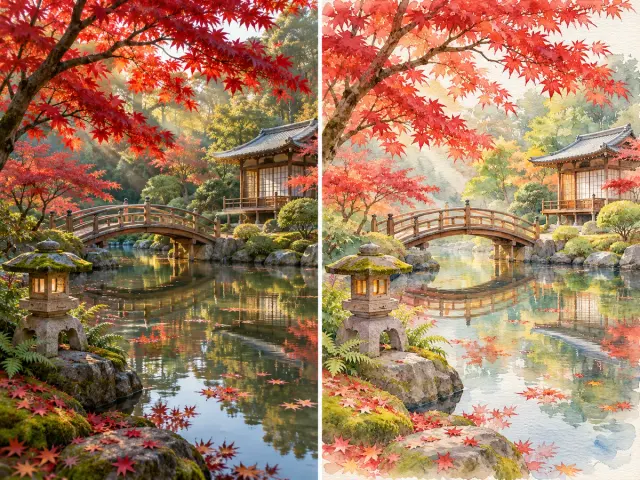
An autumn garden, bridge and pond paired with a watercolor travel-post concept; AI-generated artwork.

Use a Filter for Creative Travel Posts

An AI filter can give a holiday photo a painted treatment for a creative post. Start with a clear landmark or foreground subject. Watercolor suits softer color areas; Oil Painting suggests visible brushwork. Describe mood or palette in a short instruction rather than asking the filter to reconstruct facts. Check signs, windows, distant people, or building shapes against the original. Share the AI filter image as an artistic interpretation. Retain the untouched travel photo when documenting a location, reading a sign, or recording what was actually there.

How Does This AI Filter Compare with Other Tools?

For a photo that belongs in a larger design, Canva offers its editor workflow; Airbrush describes a direct photo workflow, while Filter AI provides a directory for exploring styles. Each AI filter comparison below covers public pages, not matched output tests.

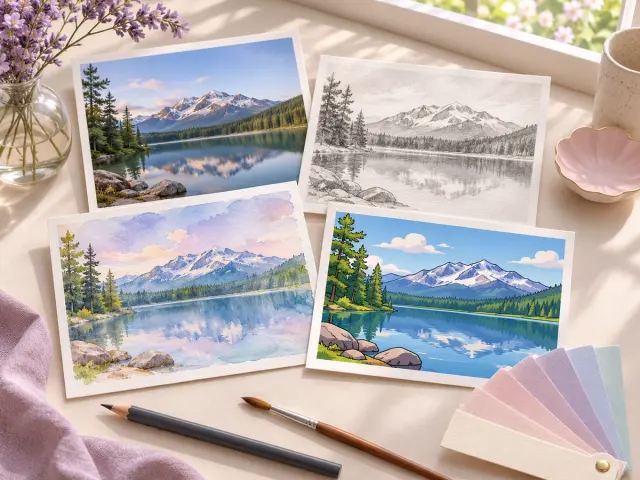
Four illustrated mountain-lake treatments: photographic, pencil sketch, watercolor and cartoon; AI-generated artwork.

Compare the Workflow and Result Controls

FeatureZEnhancerCanvaAirbrushFilter AI
Starting pointOne-photo tool*Apps > ReimagineUpload, choose, downloadPrompt and style directory
Result examplesIllustrative Cartoon artworkBefore/after sliderSame-photo style collageBefore/after examples
Cost disclosure5–8 credits/generation*Free use describedBasic free use describedPlans and credit packs

Check Published Filter Limits and Credit Rules

Published page dataZEnhancerCanvaAirbrushFilter AI
Guide steps3*533
FAQ entries7*355
Upload limit10 MB*Not statedNot statedNot stated
Generation cost5–8 credits*Not quantifiedNot quantifiedUnit unverified

Reviewed 2026-11-14: Canva, Airbrush, and Filter AI. Guide and FAQ counts describe the pages, not product quality. Choose an AI filter generator by its workflow and current terms. Credit units are site-specific.

*ZEnhancer’s dedicated AI filter workflow is available; the Cartoon artwork is illustrative, rather than a product test. The upload limit and model prices follow that editor’s rules. Missing limits or rates do not mean unsupported features. Filter AI’s displayed generation number has an unverified unit.

AI Filter FAQ

What Is an AI Filter, and How Is It Different?

ZEnhancer’s AI filter generates a restyled image from one photo instead of applying only a fixed color or brightness adjustment. The filter can redraw objects and small details. Choose this generative tool for a creative interpretation, and compare the completed image with the original before saving.

Which AI Photo Filter Should I Choose?

Choose an AI photo filter online by the look you want: Anime or Cartoon for drawn portraits, Sketch for pencil lines, Watercolor for soft washes, Oil Painting for brush texture, or Pixel Art for blocky forms. Your AI filter for profile pictures should keep the subject recognizable at avatar size. Review the filter guide and the illustrated Cartoon example before generating.

Which Photos Suit an AI Photo Filter?

Use a clear, well-lit input with an obvious main subject. Faces, pet markings, or landmark shapes should be visible before you run the filter. Your AI photo filter cannot establish facts that a tiny or heavily blurred original does not show. Inspect the filter image for changed information, even when the new style appears polished.

Is This AI Photo Filter Online Free to Use?

Free V1 use depends on available credits; sign-in or verification may be required. ZModel V1 uses 5 credits; ZModel V2 Pro uses 8 per new AI filter generation. V2 requires Pro, Ultra, or eligible premium-pack credits. Review the filter quote before submitting. Another AI filter version uses credits again.

Which Filter File Formats and Sizes Can I Upload?

Upload one JPG, PNG, or WebP image, up to 10 MB and 40 megapixels. Here, 10 MB means 10 × 1024 × 1024 bytes. Convert HEIC, TIFF, or another unsupported format to JPG or PNG first. Keep the original photo: this filter input limit does not promise an identical output size or a 4K image.

Will the Filter Preserve Faces, Text, and Labels?

Exact preservation is not guaranteed. An AI filter may change faces, lettering, labels, or small shapes. Compare the filter image with the unchanged original at the intended sharing size. A polished result does not establish factual accuracy. Keep original files for identity documents, product records, or any use requiring exact information.

How Do I Save a Filter Result Without a Watermark?

Download an inspected AI filter result as PNG or JPG. ZEnhancer’s export adds no watermark; marks already present in the generated image remain. The illustrated Cartoon artwork has no visible watermark. Review the filter output before sharing. Saving the existing result does not start a new generation, so retrying a download differs from asking the filter to generate again.

An AI filter changes visual style. These tools address a different task, from preparing the source to refining clarity or output size.

Ready to choose an AI photo filter online? Return to the tool and review the quote before generating. An AI filter for profile pictures also needs a clear source and a final detail check. Inspect the saved filter image before sharing.

Back to the AI Filter