

AI Photo Editor — Edit Photos with Text Prompts

Upload a JPG, PNG, or WebP, describe your idea, and let the photo editor change backgrounds, outfits, objects, and lighting. Add reference images to give your edit a clearer direction.

  • Free credits to try
  • No added watermark
  • JPG, PNG & WebP · 10 MB total
  • Recent edits for 24 hours

Your photo editor workspace

Your photo editor workspace
Upload images0/2

Image 1 is your main photo. Add references for an outfit, object, or visual style.

Describe what to change and keep. Use @Image 2 to refer to your second image.

0/1000

5 credits per edit

View result

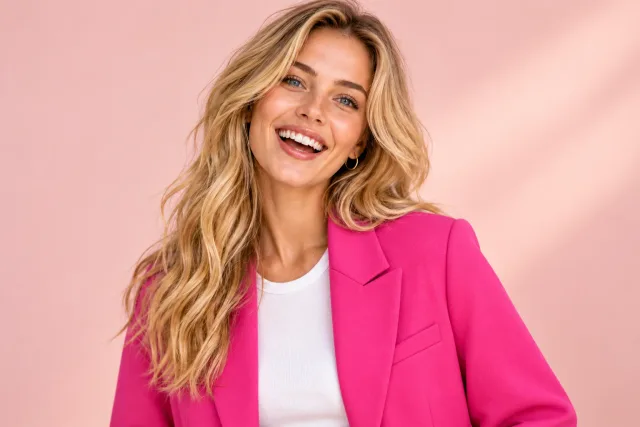
Photo editor outfit example with the same smiling blonde woman in a pink blazerAfter
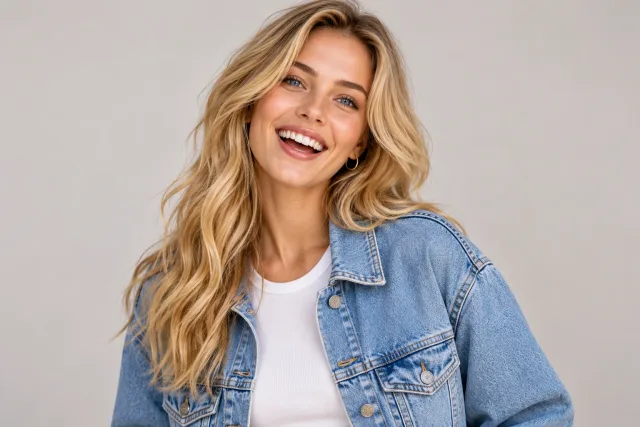
Smiling blonde woman in a denim jacket against a gray studio backgroundBefore

AI-generated example · load the original to try your own edit.

Edit Photos with AI in Three Simple Steps

Auto-playing demo: we swap the book in the man's hand for the reference coffee cup. Playback is sped up and no credits are used.

  1. Upload image0/2

    01Upload your photo

    Add the man's photo as the main image, then include the coffee cup as a reference. Your selected model sets the image limit.

  2. Reference and describe

    02Reference and describe

    Type @ to add mug.webp, then describe which image to edit and which one supplies the new object.

  3. 03Review and keep editing

    Submit, wait a moment, then compare the object in his hand. Download the result or keep editing.

Replace the book in the man's hand with the white coffee cup. Match grip, scale and lighting naturally; retain the man and background.

Click a picture tag to preview it; its × only removes the reference from the prompt. Add reference photos in the editor when needed.

YOUR PHOTOS, REIMAGINED

See what your photo editor can change

A new outfit, a cleaner product scene, or fewer distractions. Explore three editing ideas and drag the slider to inspect each change.

Photo editor outfit example with the same smiling blonde woman in a pink blazer
Smiling blonde woman in a denim jacket against a gray studio background
Before
After

Drag to compare the editing example

Portraits & personal style

A portrait photo editor for your next look

Try a new jacket, refresh a profile picture, or coordinate colors for a campaign. Tell the photo editor what to change and which facial features, expression, and hairstyle to preserve. A specific outfit and background give the model a clear direction.

Example prompt

“Swap the denim jacket for a fuchsia blazer and use a blush-pink studio background. Keep her face, smile, hair, white top, and pose.”

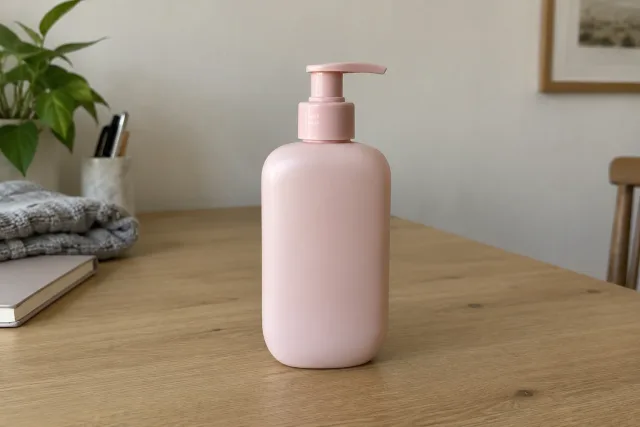
Pink skincare bottle on a travertine plinth after a photo editor background change
Pink skincare bottle on a home desk before background replacement
Before
After

Drag to compare the editing example

Products & online shops

Give your product a setting that sells the idea

Move a desk photo into a softly lit studio scene without arranging another shoot. This product photo editor can reinterpret backgrounds, surfaces, and shadows. Ask it to protect the bottle shape, material, and camera angle, then inspect fine details before publishing.

Example prompt

“Place the pink bottle on a travertine plinth in a blush studio. Add soft sunlight and natural shadows. Keep the bottle and pump unchanged.”

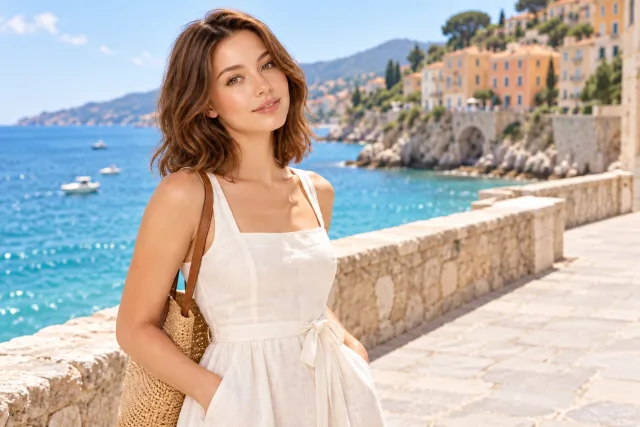
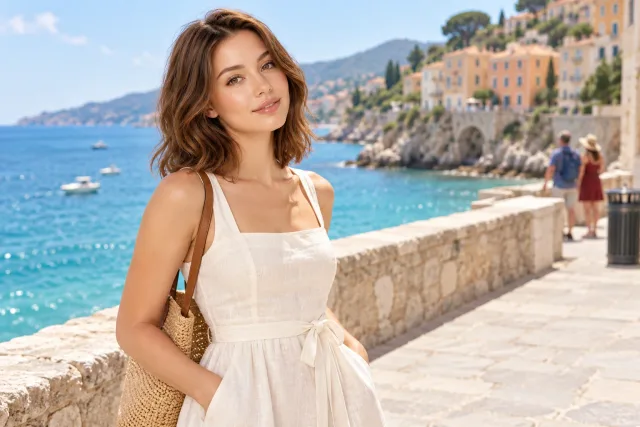
Seaside portrait after removing background tourists and a bin
Brunette woman at a seaside promenade with tourists in the background
Before
After

Drag to compare the editing example

Travel & everyday moments

Keep the moment. Clear the distractions.

A passerby or clutter can pull attention away from a favorite photo. Name the unwanted object and its position so the photo editor can rebuild that area. Keep your subject, the setting, and the original mood in the instruction; check nearby edges when you compare.

Example prompt

“Remove the two tourists and the bin on the right. Rebuild the stone promenade. Keep the woman, dress, sea, buildings, and lighting unchanged.”

These AI-generated examples illustrate editing ideas. Your result depends on the source photo, prompt, and selected model.

One photo editor, more possibilities

Make a useful change to a picture you already have. Start with one of these six ideas, then make the instruction your own.

01

Change the background

Turn a busy street into a calm studio or give a product a new setting. Ask the photo editor to preserve the subject and match the surrounding light.

02

Remove a distraction

Describe the unwanted object and where it sits. Rebuild the surrounding scene without asking for unrelated changes to the people or objects you want to keep.

03

Try a different outfit

Explore clothing colors, materials, or a new look. Specify the garment and protect the face, pose, hands, and background in the same instruction.

04

Explore a hairstyle

Visualize a new cut or hair color before making a decision. Keep the description focused on hair and review the result for changes to facial features.

05

Shape the lighting

Ask for soft window light, warmer evening tones, or more balanced exposure. The photo editor can reinterpret lighting, so check shadows and skin texture before downloading.

06

Set a creative mood

Give a portrait an editorial color grade or reinterpret a scene as an illustration. Describe the mood, palette, and details that should remain recognizable.

Get more from your AI photo editor

Generative editing can change small details. Check faces, hands, lettering, logos, and product edges before publishing. If an edit goes too far, start again from the original with a narrower instruction.

A useful prompt names the subject, the requested change, and the details to protect. “Make this better” leaves room for guesswork. “Replace the wall with a pale beige studio backdrop; keep the bottle, label, cap, and camera angle” gives the photo editor a much clearer task.

1Name the subject2Describe the change3Protect key details

Choose your photo editor model

The same clear pricing you use across our image tools. Your selected model sets the cost; quick prompts and output shape do not add a separate fee.

ZModel V1

5 credits per edit

For everyday creative changes and quick experiments with up to 2 images. Use available free or paid credits to get started.

ZModel V2 Pro

8 credits per edit

For detailed edits with up to 5 images, high-quality processing, and a 2K long edge. Requires Pro, Ultra, or eligible premium pack credits.

Credits are reserved when an edit starts and returned if the task fails. Each new submission, including Continue editing, uses the displayed credits. Uploading references and downloading PNG or JPG files do not add a separate editing charge.

Finish the image your way

Pair the photo editor with a focused tool when your next step is clarity, a larger image, or a different file format.

Photo editor questions, answered

Yes, you can try ZModel V1 when free credits are available for your account or guest session. Each edit uses 5 credits. Free access may require verification and is subject to the allowance shown in your credit menu.

Your photo. A few words. A fresh direction.

Bring your next idea to the photo editor. Start with a picture you love and describe what you want to change.

Start editing