
Photo EditingEveryday quality
AI Photo Enhancer
Begin with Free AI Image Tools that improve overall clarity, balanced detail, and visual polish when a photo needs broad enhancement rather than one narrow correction.
Enhance a PhotoA focused directory for everyday photo work
Jumping between unrelated editors wastes time and makes simple photo work feel harder than it should. Free AI Image Tools bring enhancement, cleanup, restoration, and conversion choices into one clear starting point, so you can identify the problem and open the right workflow without guessing.
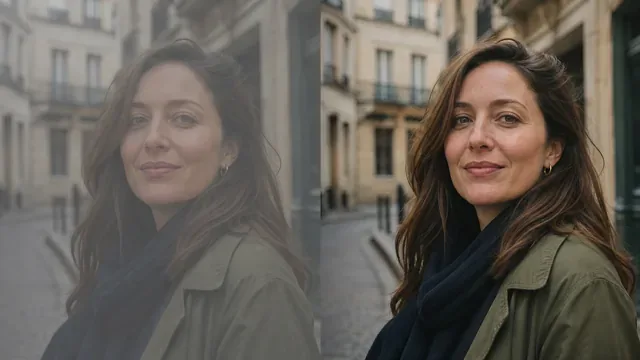
Everyday quality
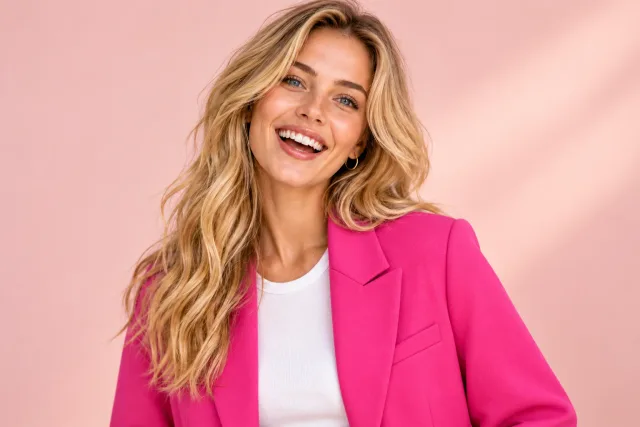
Style
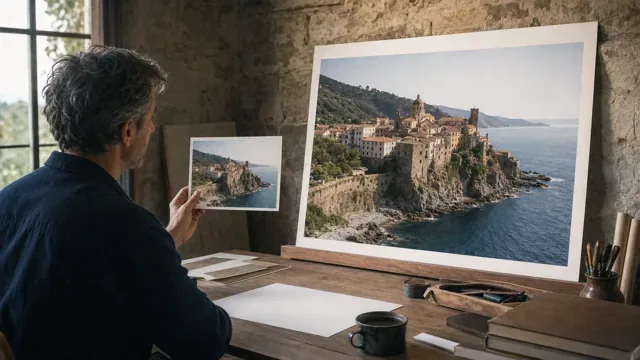
Larger output
These Free AI Image Tools are organized around concrete outcomes rather than vague feature names. Read each card to understand its scope, then follow the direct link. Photo cards include a visual preview; converter cards show the source and destination formats at a glance.
Begin with Free AI Image Tools that improve overall clarity, balanced detail, and visual polish when a photo needs broad enhancement rather than one narrow correction.
Enhance a PhotoEdit backgrounds, objects, outfits, and light with a text prompt.
Start editingIncrease image dimensions while preserving useful detail for larger screens, print preparation, marketplace listings, or crops that started from a small source.
Upscale an Image
Separate a subject from its surroundings for product listings, profile pictures, presentations, or creative compositions that require a cleaner background.
Remove a Background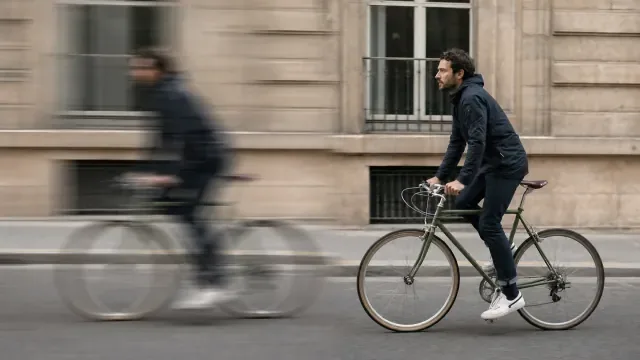
Improve a generally blurry photograph affected by soft focus, camera movement, or lost definition while keeping the result visually natural.
Unblur an Image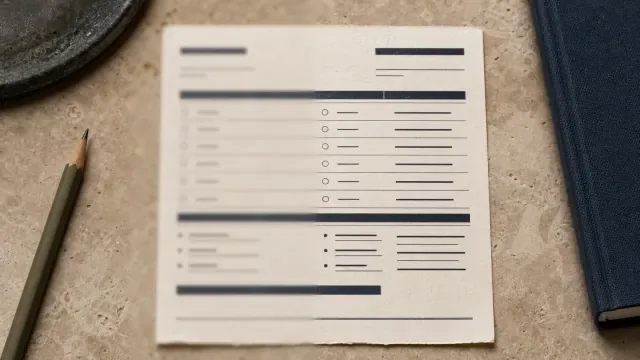
Target blurred writing in documents, signs, screenshots, labels, notes, and slides when readable characters matter more than broad photographic enhancement.
Clarify Text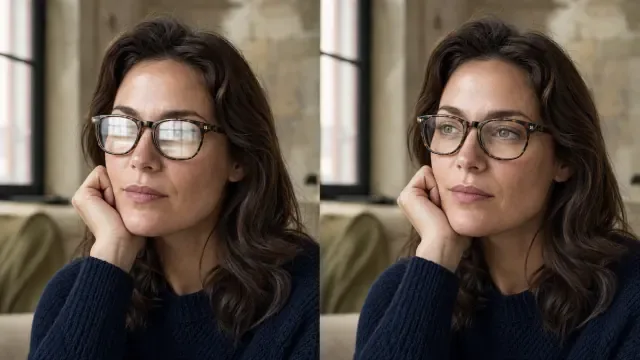
Reduce distracting glare from glasses, glossy products, scanned photographs, bright skin highlights, or sunlight while protecting surrounding texture and color.
Remove Glare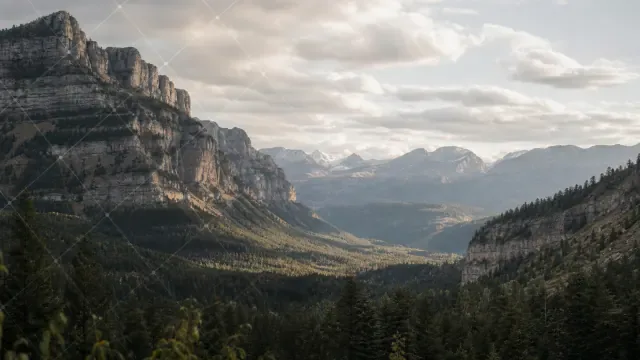
Clean authorized images by removing unwanted text marks, corner badges, repeated logos, or transparent overlays while rebuilding the covered area.
Remove a Watermark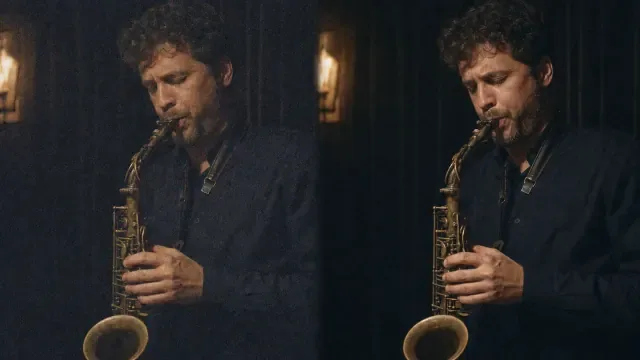
Reduce grain and color noise from night scenes, high-ISO portraits, phone photos, and product shots without treating intentional texture as damage.
Denoise a Photo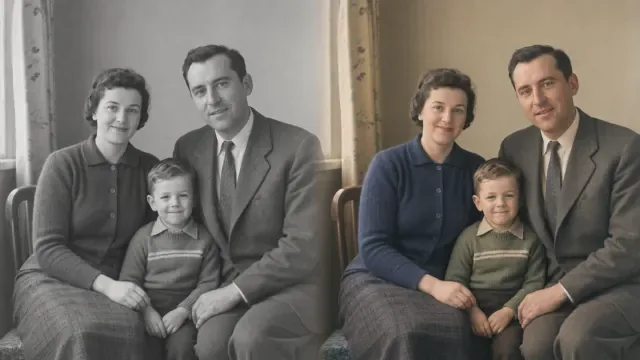
Add plausible color to black-and-white portraits, family archives, and historical photographs while retaining the character of the original image.
Colorize a Photo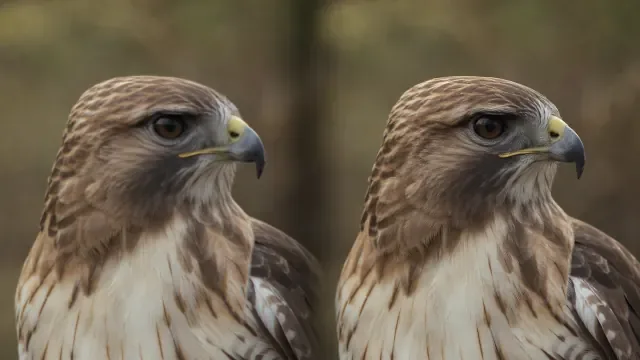
Strengthen edge definition and fine texture when an image looks slightly soft but does not need extensive blur recovery or enlargement.
Sharpen an Image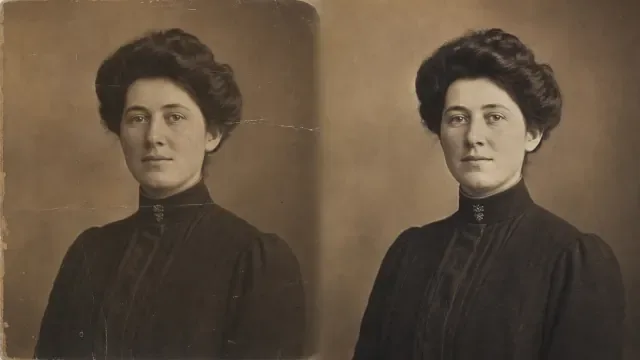
Repair faded, scratched, stained, or damaged family photographs by combining cleanup and detail recovery in a workflow designed for aged images.
Restore a PhotoOpen the main conversion workspace when you want to choose among supported JPG, JPEG, PNG, and WebP directions from one place.
Open Image ConverterConvert PNG graphics or photographs to WebP when you need a modern web format and a straightforward, dedicated path.
Convert PNG to WebPTurn a standard JPG file into WebP for websites, content libraries, or workflows that expect the newer format.
Convert JPG to WebPUse the JPEG-specific route when your source carries the .jpeg extension and the required destination is a WebP file.
Convert JPEG to WebPConvert WebP to PNG for editors, slide tools, or systems where PNG is easier to preview, share, or reuse.
Convert WebP to PNGCreate a JPG from WebP when a familiar photographic format is needed for uploads, sharing, archives, or older software.
Convert WebP to JPGChoose the JPEG route when the receiving service or filename convention specifically requires a .jpeg output instead of .jpg.
Convert WebP to JPEGTurn a PNG into JPG for photo-oriented services and workflows where a conventional, widely supported output is preferred.
Convert PNG to JPGConvert JPG to PNG when a design tool, publishing workflow, or downstream editor expects the PNG file type.
Convert JPG to PNGThis is a directory, not another editor. Every card leads to an existing ZEnhancer tool at its established address, so you can choose an outcome and continue directly.
Start from the visible problem—blur, noise, glare, a distracting background, an old photograph, or the wrong file format—and reach a purpose-built workflow.
Each destination explains its accepted input and primary action, helping you begin without installing a general desktop editing suite.
The directory uses the current canonical tool addresses, giving you predictable bookmarks and clear paths between related editing tasks.
The best Free AI Image Tools match the visible problem instead of offering the longest feature list. Diagnose the image, make one purposeful change, and review the result before continuing.
Choose AI Photo Enhancer when several qualities feel weak. Move to sharpening, denoising, or upscaling only when one issue remains obvious.
Use Unblur Image for a soft photograph and Unblur Text for writing. Sharpen Image handles modest edge definition; Image Upscaler addresses dimensions.
Background Remover isolates subjects, Remove Image Glare reduces reflections, and Denoise Photo targets grain. Free AI Image Tools work best when each correction has a purpose.
Photo Restoration handles scratches, stains, fading, and accumulated damage. Photo Colorizer is for adding plausible color to a black-and-white source.
Read the from and to labels first. Separate JPG and JPEG routes remove ambiguity when a service expects a particular filename extension.
Keep the original file, complete the most important correction first, and compare before continuing. Keeping a simple note of the order used also makes it easier to repeat a successful workflow on similar photographs. For a repeatable process, name exported copies by task and date, then check important faces, text, edges, and colors before sharing the final version.
Use these answers to choose a destination.
Start with the problem. AI Photo Enhancer suits broad improvement, Unblur Image addresses blur, Background Remover creates a cutout, and Image Converter changes formats.
Treat every output as a new working copy and keep the original safely stored. You can compare results or try another workflow without repeatedly processing an edited image. If an output is not useful, return to the untouched source rather than correcting the correction, because repeated edits can hide detail and introduce artifacts.
Work in stages: Denoise Photo handles grain, Unblur Image addresses lost clarity, and Image Upscaler increases dimensions. Free AI Image Tools should solve one remaining problem per step.
Yes. Choose the conversion route whose from and to labels match your files, or open Image Converter to review several supported directions. Conversion changes the container format; it does not intentionally sharpen, restore, recolor, or remove objects from the picture.
Many systems treat JPG and JPEG alike, yet uploads may request one extension. Separate destinations make the expected input and output explicit.
Choose Unblur Image for blur, Sharpen Image for mild softness, and Image Upscaler for small dimensions. If issues overlap, address the defect that most limits detail. Review at normal viewing size because excessive correction can create harsh edges, smooth texture, or make authentic grain look artificial.